Why a Letter Mockup Belongs in Your Creative Workflow
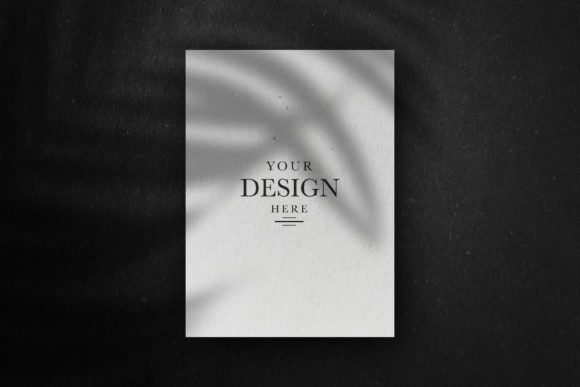
You know that moment when you’re trying to show a client or a friend how a design will look on an actual piece of paper? You can describe it all you want—the paper weight, the slight curve of the envelope, the way light catches the texture—but until they see it, it’s just an idea floating in their head. A Letter Mockup bridges that gap. It’s a layered PSD file that lets you drop your own design onto a realistic letter scene, so instead of showing someone a flat digital file, you’re presenting something that looks like it’s already been printed, folded, and placed on a desk.
If you’ve ever spent hours trying to make a screenshot look presentable or struggled to explain how a printed piece would feel, this kind of mockup saves you both time and awkward conversations. It’s not just about making things look pretty—it’s about giving people a way to see your work in context before you spend money on actual printing.
When a Letter Mockup Turns a Good Idea Into a Clear Message
Let’s say you’re a freelancer sending a proposal to a potential client. You’ve written it in a clean format, but you want to send them a preview that feels polished and professional. Instead of attaching a plain PDF, you place your proposal pages into a Letter Mockup. Now the client sees the document sitting on a desk, maybe with a coffee cup beside it or a pen resting on the corner. It’s subtle, but that visual context changes how they perceive your work. It feels tangible, like something they already hold in their hands.
That’s one of the most overlooked parts of presenting work: people respond to context. A logo on its own is just a shape. Put that same logo on a letterhead, inside a mockup that shows the paper’s edge and the way the text sits on the page, and suddenly it’s part of a brand. The same principle applies whether you’re a blogger sharing a printable, an educator designing class materials, or a small business owner creating a welcome kit for new customers.
Real Scenarios Where a Letter Mockup Changes the Outcome
Think about a wedding invitation you’re designing for a couple. They’ve chosen a rustic theme, with kraft paper and hand-drawn typography. You could show them the flat design file, and they’d nod and say it looks nice. But if you place that same design into a Letter Mockup that shows the invitation held by someone’s hand, with the natural shadows and slight paper curl, they’ll feel the theme. They’ll say “yes, that’s exactly what we wanted” because they can imagine it arriving in someone’s mailbox.
Or consider a marketer preparing a direct mail campaign. You’ve written a letter that’s meant to feel personal, maybe with a handwritten font and a casual tone. Sending a screenshot of the text in a word processor doesn’t convey the intention. A mockup that shows the letter unfolded on a table, with the envelope nearby, communicates that this is something real—something someone would actually open. That visual cue can make the difference between a client approving the campaign or asking for more revisions.
For entrepreneurs launching a product, a thank you note inserted into the package is a small touch that builds loyalty. You can design that note, then use a Letter Mockup to show how it will look tucked inside a box next to the product. It’s not just a note anymore—it’s part of the unboxing experience. And when you’re pitching to investors or partners, showing that kind of attention to detail tells them you think about the whole customer journey, not just the product itself.
Who Gets the Most Out of This Kind of Tool
Honestly, almost anyone who puts words or designs onto paper can benefit. Freelancers use mockups to present proposals, invoices, and brand guidelines. Educators create worksheets, handouts, and classroom posters and want to show them in a realistic format before printing a class set. Publishers and self-publishing authors use them to preview book covers, interior layouts, or promotional material like postcards and flyers.
Hobbyists enjoy them too. Maybe you design printable art for your Etsy shop, or you make custom invitation suites for friends. A mockup gives your shop listings a professional look without needing to print every design yourself. And if you’re a social media manager or content creator, mockups are a fast way to generate posts that show your audience what you can do—without staging a photo shoot every time.
The common thread is that everyone wants to communicate an idea clearly, and a flat digital file often falls short. A Letter Mockup adds that layer of realism that helps people say “I get it” instead of “can you show me what that looks like in real life?”
What to Look for Before You Start Working With a Mockup
Not all mockups are created equal, and the difference shows when you start editing. This particular mockup comes as a PSD file with organised layers, which means you can open it in Photoshop and find exactly what you need without hunting through dozens of unlabeled folders. Smart Object Replacement is the feature that makes it fast: double-click the smart object layer, paste your design, save, and the mockup updates instantly. No messing with blending modes or wondering if your image will align properly.
The 3000×2000 pixel resolution matters too, especially if you plan to use the mockup for print previews, high-res social media posts, or even on a website hero section. At that size, the details hold up—text remains readable, and the paper texture stays crisp. If you’ve ever used a mockup that looked fine at small sizes but turned blurry when you zoomed in, you know why resolution is worth checking upfront.
Another thing to consider is the included preview JPG and Read Me.txt file. The preview file helps you quickly see what the scene looks like without opening Photoshop, which is handy when you’re sorting through multiple mockups. The Read Me file contains a link to the font used in the demo scene. If you want your design to match the original style, you can download that font. If not, you can ignore it and use your own—the mockup doesn’t require that specific font to work.
How the Features Match Real Editing Habits
If you’re someone who edits on the go or works with multiple designs at once, organised layers are a lifesaver. You can hide the envelope layer if you only need the letter, or adjust the shadow of the paper without affecting the background. That kind of control means you can tweak the scene to fit your brand’s lighting or mood without starting from scratch.
Smart Object Replacement also means you don’t need to be a Photoshop expert. If you know how to open a file and double-click a thumbnail, you’re already qualified. For beginners or busy business owners who don’t have time to learn advanced editing, that’s the difference between using the mockup and abandoning it halfway through.
And the editable nature of the file means you can change not just the letter content but also the background colors, shadows, and overall composition. If the mockup comes with a dark wood background but your brand uses light marble, you can swap it. If the letter is angled to the right but you prefer it straight, you can rotate it. This flexibility is what makes a single mockup useful across many projects—not just one invitation, but every letter, note, or document you need to present.
What to Consider Before You Use a Letter Mockup
One thing to keep in mind is that a mockup is a representation, not a replacement for actual printing. The colors on your screen will look slightly different when ink hits paper, especially if you’re using uncoated stock or a home printer. Use the mockup as a communication tool, not a final proof. If you’re preparing something for print, always request a physical proof before mass production.
Also think about the audience you’re showing it to. If you’re presenting to a corporate client who prefers clean, minimal visuals, a mockup with too many props (like coffee cups or flowers) might distract from the design. Most Letter Mockups, including this one, focus on the paper itself with a clean setting, so that’s rarely an issue—but it’s worth considering if you plan to swap the background yourself.
Another practical note: keep a copy of your original design file separate from the mockup. Once you replace the smart object, you can always revert to the default easily in this file, but for your own workflow, it’s better to maintain a master version of your design. That way, if you want to use the same letter in a different mockup later, you don’t have to recreate it.
How Different Users Might Approach the Same Mockup
A marketer might use it to A/B test different headlines for a mailer. Drop version A into the mockup, save it as a JPG, then drop version B and save another. They can compare how each looks in context without printing anything.
A creative entrepreneur designing a product insert might use the same mockup to show the insert alone on a flat surface, then again with the product beside it. The file’s organised layers allow them to hide or show elements, so one mockup can serve multiple shots.
An educator creating a parent newsletter might use the mockup to share a preview in a school Facebook group. Parents see a realistic-looking newsletter that feels like something they’d actually receive, which increases engagement and trust.
A freelance writer pitching a column to a magazine could use the mockup to show how their article would look printed on the publication’s letterhead. That little visual cue can make a pitch feel more serious and considered.
Making the Most of the File You Get
When you download the PSD, preview JPG, and Read Me file, it helps to open the preview first. See the scene, think about what parts you want to keep or change. Then open the PSD, locate the smart object layer (usually labeled clearly), and paste your design. Save it, and you’re done. If you want to match the font in the demo, the Read Me file gives you the link—but honestly, your own font will work just fine.
Mockups like this are meant to be used repeatedly. Store the PSD in a folder you can access quickly. The next time you need to present a letter, a note, a certificate, or any flat document, you’ll have a three-minute edit instead of a thirty-minute setup.
Whether you’re launching a product, sending a proposal, creating content for social media, or designing something for someone special, a Letter Mockup turns your digital design into something people can see, imagine, and trust. That’s the whole point—not to replace the real thing, but to help others see what you see before you make it real.