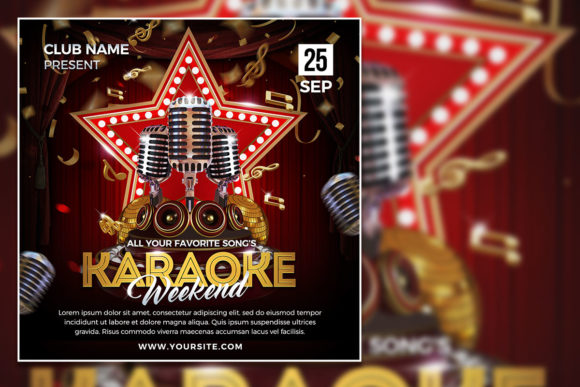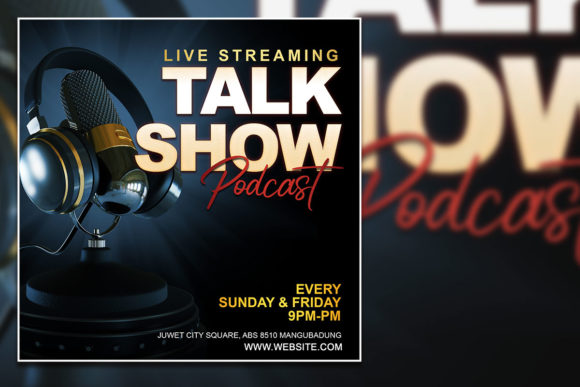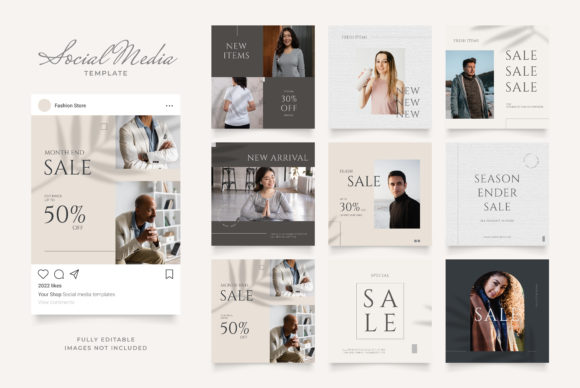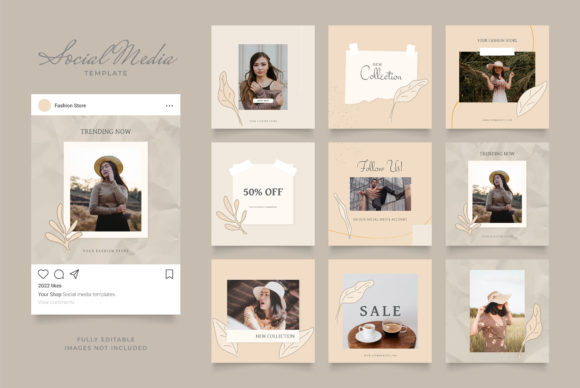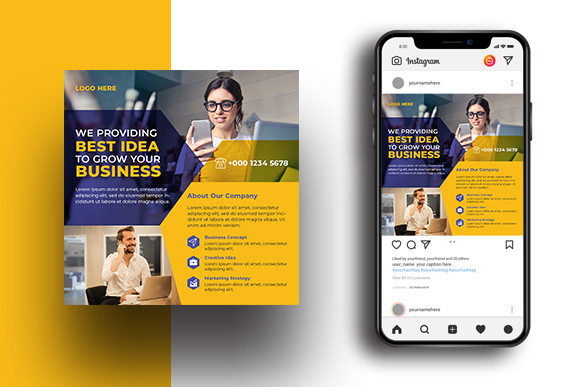
Corporate Social Media Template for Versatile Branding
Creating consistent, professional social media visuals is one of the most practical investments any business can make. A corporate social media template bridges the gap between brand identity and daily content needs. It gives you a repeatable structure that keeps your messaging clear, your visuals polished, and your workflow efficient. Whether you manage a small agency, run a marketing department, or handle content for clients, having a flexible banner template means you never start from scratch. You simply adapt, replace, and publish.
What makes a corporate business social media banner template particularly useful is its adaptability across industries. It works whether you are in finance, technology, education, hospitality, or creative services. The design is intentionally neutral enough to carry your brand colours, fonts, and imagery, yet structured enough to maintain a professional look. This balance is what allows you to use the same core template for a LinkedIn company update, an Instagram story, a Facebook event banner, or a Twitter promotion without losing visual consistency.
What the Corporate Social Media Template Offers
At its core, this template is a layered PSD file optimised for quick editing. The 1080 x 1080 pixel square format at 72 DPI with RGB colour space makes it ready for almost any social platform. The smart object layers allow you to replace images with a simple double-click. You do not need advanced Photoshop skills to swap a product photo, team headshot, or background visual. The layer organisation keeps text, graphics, and imagery separated, so you can adjust one element without accidentally moving another.
Free fonts are included, which removes the hassle of searching for compatible typefaces. The single PSD file means you have one source of truth for your banner. You duplicate it, name the new version, and start editing. This approach keeps your files organised and reduces the risk of working on the wrong version. For anyone managing multiple clients or campaigns, that kind of clarity is invaluable.
The template is designed for first impressions. When someone scrolls through their social feed, the banner is often the first thing they notice. A clean, well-structured banner signals that your brand is professional, attentive to detail, and worth engaging with. It sets the tone for the content that follows, whether that is a promotional post, an event announcement, or a thought leadership article.
Creative Possibilities You Can Explore
The versatility of this template opens up creative directions that go beyond simple brand consistency. You can treat each banner as a canvas for a specific message while keeping the underlying structure familiar to your audience. This approach builds recognition without making every post look identical.
Layered visual storytelling
Use the image replacement capability to tell a different story with each banner. One week you might feature a client success story with a photograph of your team working together. The next week you could highlight a product launch with a clean product shot against a minimalist background. The template gives you the freedom to change the hero image while keeping your brand colours, logo placement, and typography consistent.
Consider using overlapping elements to create depth. The layered PSD structure allows you to add subtle shadows, gradient overlays, or texture layers behind your main image. This can make your banner feel more dimensional without becoming cluttered. A light texture overlay on the background can soften the overall look, making text more readable and the design more inviting.
Campaign-specific variations
You can create a series of banners for a single campaign while maintaining a unified visual language. For example, if you are running a three-month awareness campaign, use the same template structure but change the colour accent or call-to-action button for each phase. This keeps the campaign cohesive while signalling to your audience that the message is evolving. The template's organised layers make it easy to adjust these elements across multiple files.
Platform-specific adaptations
While the template is designed at 1080 x 1080 pixels for square posts, you can adapt it for other formats. For Instagram Stories or LinkedIn cover images, you might need to extend the background or reposition elements. Because the template uses smart objects and separated layers, you can widen the canvas and adjust the composition without rebuilding the entire design. This flexibility means you can start with the square version and then create landscape or portrait variations from the same source file.
Practical Uses Across Different Roles
Different users will get different value from this template depending on their goals. Understanding how each role can adapt it helps you get the most out of the file.
For designers and creative professionals
If you design for multiple clients, the template becomes a time-saving foundation. You can set up client-specific colour palettes and font sets within the PSD, then duplicate the file for each new project. The smart object layers make image replacement fast, so you can iterate on concepts quickly. You might use the template to create a library of pre-approved banner layouts for each client, saving hours during busy campaign periods.
For marketers and social media managers
Speed and consistency are your priorities. With this template, you can create a week of social media posts in one sitting. Prepare the text, choose the images, and drop them into the template. The organised layers mean you do not have to worry about accidentally misaligning your logo or text. You can focus on the message and timing while the template handles the visual structure. This is especially useful when you need to respond quickly to current events or trends without sacrificing brand quality.
For small business owners and entrepreneurs
When you are running the business yourself, you rarely have time to learn complex design tools. This template removes the learning curve. Replace the placeholder image with your own photo or product shot, update the text, and export. You get professional results without needing to understand design principles from scratch. The included free fonts mean you do not have to search for typefaces that look corporate. Everything you need is in one download.
For educators and content creators
If you produce educational content or online courses, the template can serve as a consistent thumbnail or promotional graphic for each lesson. Use the image layer to show a relevant screenshot, diagram, or teaching moment. Keep the text area for the lesson title and a short descriptor. Your audience will start recognising your content by the visual style alone, which builds trust and makes your materials look more polished.
How to Keep Your Results Clear and Effective
Even with a well-designed template, the final result depends on how you use it. A few practical considerations will help you maintain clarity and impact across every banner you create.
Prioritise readability. The template provides space for text, but avoid overcrowding it. Stick to one main message per banner. If you have multiple points to communicate, consider creating a series of banners instead of compressing everything into one. Your audience scans social media quickly, so a clean layout with a single focal point will capture more attention than a busy design.
Maintain visual hierarchy. Use the template's layer organisation to keep your most important element prominent. Typically, that is the headline or the image. Place your logo in a consistent position where it does not compete with the main message. The template likely already has a suggested layout, but you can adjust the order of layers if your content requires a different emphasis.
Choose images with intention. The smart object layer makes image replacement easy, but the quality of your image still matters. Use high-resolution photos that are relevant to the message. Avoid generic stock images that feel disconnected from your brand. If you are a local business, use photos of your actual team or location. If you are a digital agency, use screenshots or graphics that reflect your work. Authentic images resonate more deeply than polished but impersonal visuals.
Test colours before committing. The RGB colour space is ideal for digital screens, but colours can appear differently across monitors and devices. Preview your banner on a few screens before publishing. Adjust contrast if the text becomes hard to read against the background. The template's layer structure makes it easy to tweak colour overlays or gradients without starting over.
Adapting the Template for Different Audiences
Your audience determines how you use the template, not the other way around. A corporate banner aimed at C-level executives should look different from one targeting early-career professionals. The template can accommodate both, but you need to adjust the tone of the imagery and the language in the text area.
For a professional services audience, lean toward clean backgrounds, neutral colours, and imagery that suggests reliability and expertise. For a creative or startup audience, you can introduce bolder accent colours and more dynamic imagery. The template's design is neutral enough to support either direction, so you are not locked into one style.
If your audience includes multiple segments, create a template variant for each. Duplicate the original PSD and adjust the colour palette, font weight, or image style to match each segment's preferences. Keep the core layout the same so your brand remains recognisable, but let the details speak to each group's expectations.
Streamlining Your Workflow
The biggest advantage of using a corporate social media template is the efficiency it brings to your content creation process. Instead of designing each banner from scratch, you develop a system. Set up a folder structure where each client or campaign has its own subfolder containing the base template and all its variants. Name your files clearly so you can find the version you need without opening each one.
When you start a new project, open the template, use "Save As" to create a new file, and begin editing. The smart object layers allow you to work non-destructively. You can swap images, change text, and adjust colours without degrading the original file. This workflow is especially useful when you need to create multiple banners in one sitting. After the first one is ready, each subsequent banner takes only a few minutes.
Consider creating a checklist for your banner creation process. Include steps like replacing the image, updating the headline, checking colour contrast, and exporting in the correct format. As you repeat the process, the checklist becomes automatic. The template handles the design consistency, while your checklist ensures nothing is missed.
Making a Strong First Impression
Your social media banner is often the first encounter a potential customer has with your brand. A polished, professional design signals that you take your business seriously. The corporate social media template gives you a head start by providing a clean, structured foundation. Your job is to populate it with content that reflects your unique value.
Think of each banner as a miniature landing page. The image draws attention, the headline communicates the core message, and the overall design invites the viewer to engage further. When these elements work together, the banner does more than announce. It creates curiosity, builds trust, and encourages a click or a share.
The template is a tool, not a crutch. Use it to remove the friction of starting from zero, but let your content be the driving force. As you become more familiar with the layers and editing process, you will naturally find new ways to adapt the template to your changing needs. That is the real value of a versatile corporate business social media banner template: it grows with you.